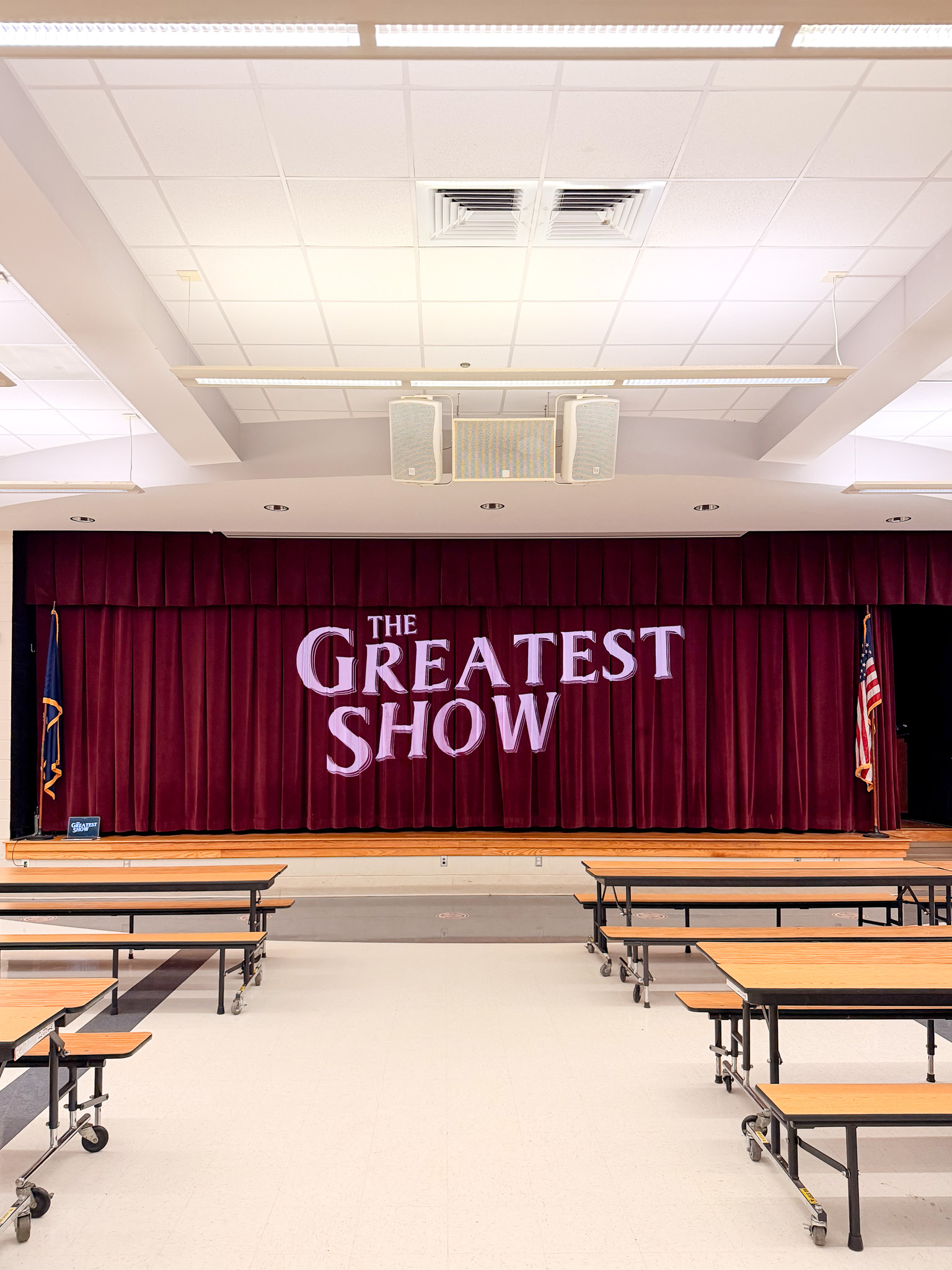
As technical director for the 2026 Miss EMS Pageant at Edgewood Middle School, I led a four-person backstage production team which supporting a live audience of about 400 people.
We had no real production budget, just a few hours of tech practice, and a mix of borrowed, existing, and improvised equipment for our use. Despite that, we were running centralized show control, backstage cue displays, projection playback, remote audio mixing, multicamera recording (well, more on that later), and a dedicated backstage network.
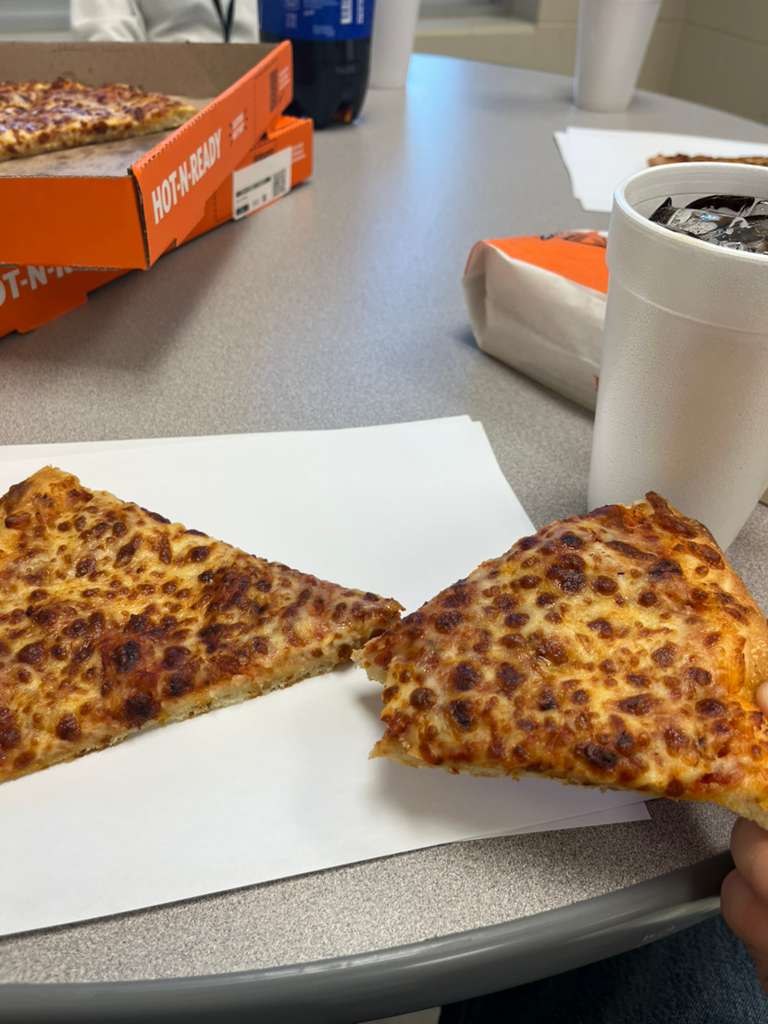
In fact, the budget was so low, we didn’t even have plates for our pizza.
It was ambitious for the amount of time and equipment we had, but most of the system held together surprisingly well.
Show control: QLab and OnTime
QLab was the main control point for the show. I ran it from a 2023 M3 Pro MacBook Pro and triggered the primary cues myself, mostly from the keyboard, with QLab Remote available when I needed to step away from the desk. Note: don’t ever do that, you’ll miss cues.
QLab handled playback for music, video, and transitions. It also sent OSC cues to OnTime through localhost, allowing the show clock and backstage cues to follow the QLab cue stack automatically.
That setup meant the person managing OnTime didn’t need to manually advance every cie. Instead, they could focus on timing adjustments when the pageant ran ahead or behind schedule.
Our OnTime server was one of the most useful tools in the entire setup. We had an iPad near the side of the stage for performers, two Chromebooks acting as additional viewers, and a 2015 iMac running the OnTime web interface backstage. We connected an external SSD to the iMac to run macOS from so we didn’t have to rely on the slow, aging HDD.
The standard OnTime view showed the current cue, next cue, time remaining, and projected end time. We also used custom messages for live coordination, like:
Backstage left: make sure Claire (#3) has her mic ON
We only discovered that feature 2 hour before showtime, but was essential for managing entrances, curtain cues, and people waiting in the sides of the stage/ramps. During the performance, we also added an unplanned intermission during the performance, and used Ontime to adapt on-the-fly and send messages to left stage.
The opening cue stack
In my opinion, the intro was the highest-risk part of the show because several separate systems had to line up:
- A transition video had to play while the projector screen went up.
- The curtains had to open.
- The music had to transition to the next Group cue.
- The contestants had to be ready to enter.
Rather than creating one long intro track that depended on everything happening at an exact second, I built extra time into the first music section. That gave us a buffer in case the screen rose slowly, the curtains were delayed, or performers needed a few more seconds.
Once everything was ready, I triggered a separate cue to move into the next section.
That was one of the better decisions we made. It gave the intro some flexibility without having an awkward pause in between tracks (or worse, the track playing too early)
Audio and backstage mixing
Most playback audio came from the M3 Pro MacBook Pro. We were working with what we had, so the MacBook’s 3.5 mm output went through a converter and into a side-stage microphone input. It was not an ideal signal path, but it was functional within the budget.
We also had an iPad running the Allen & Heath mixing app. So instead of needing to go into the closet where the mixer was located, we could walk into the audience, hear the room the way everyone else heard it, and adjust levels from there.
We actually ended up having to go into the audience during the show to mix because our monitor speakers backstage went out.
Projection, video, and Blender
We did not have colored stage lighting, so we used projection as a janky workaround.
I created custom videos in Blender to replicate the effect of colored/RGB lighting on the stage. It was not a replacement for actual lighting fixtures, but it gave the stage some more depth, which was needed with 30+ performers on the stage at some points.
The projector was also used for:
- Intermission slides
- A logo projected onto the curtains
- Contestant/show visuals
- Transition videos
Blender was useful before the show as well. I used it to map the stage layout and think through backstage space.
That planning revealed to us that what we had planned to use would take up too much room once the performers were in the backstage area. We changed the layout before rehearsal instead of discovering it during setup, which saved time we really didn’t have.
Most graphic design assets were made in Affinity, while our music tracks were made in Logic Pro. Video we played on the projector was created in Premiere Pro and Blender.

Here’s what my kitchen looked like the day before the pageant (trying to fix video outputs)
The backstage network
During our practice, we had already dealt with a bunch of device-isolation issues on the school Wi-Fi, where devices could join the same network but could not communicate with each other.
That was a problem because for what we were doing, QLab, OnTime, the iMac, iPads, Chromebooks, and all of our other backstage tech needed to communicate locally.
So, we brought an old router and used it to create a dedicated production network for us to use. The router was connected upstream to the school Wi-Fi over Ethernet, but our backstage equipment connected to the router instead of relying directly on the school network, which gave us a more controlled local environment for OSC, OnTime, remote management, and backstage communication.
It ended up mattering more than expected. Once the audience got into the cafeteria, the school Wi-Fi became unreliable because of how many people were in the room. Our production network was still not perfect (because of interference, we were using the 2.4GHZ band), but it kept the important backstage systems that needed Wi-Fi usable.
For crew communication, we used Zello and its alert button. It was not great, but it gave us a way to get someone’s attention or ask for help backstage without needing to find them/yell.
The Multicam recording failure
The main failure of the event was the recording system.
We planned to record the pageant using Final Cut Pro on an iPad with four iPhone 17 Pros connected for multicamera capture. Before the show, we checked each iPhone and made sure that all four had enough available storage.
About 30 minutes into the pageant, every camera stopped recording at the same time.
At first, it was confusing because the phones still had storage available. They all showed they had about 3 hours of 1080p30 recording left.Then the Final Cut Pro iPad displayed an out-of-storage warning.
The issue was that Final Cut Pro was creating proxy media on the iPad while recording from the phones. We had made sure to check the amount of storage left on the phones, but we had not accounted for the amount of proxy media being generated on the iPad. In fact, we didn’t even know that FCP did that.
The iPad filled up (its only 128GB), which stopped the entire Multicam recording workflow.
For a minute, everyone backstage was focused on figuring out what failed and whether there was any way to keep it going without Multicam on the iPad. (there wasn’t)
After that initial panic, we made the correct decision: that the live show had to remain the priority.
During a 30-second unplanned intermission (that we coordinated with left stage using Ontime messages), we ran into the audience, opened the regular Camera app on the main phone, and started a manual recording to record the rest of the pageant.
It didn’t work as well, but it at least gave us some usable footage to use from one angle.
What’s changing next year
For the next Miss EMS Pageant, the plan is to move away from using Final Cut Pro on an iPad, since it gave us issues, and there is no way to livestream from it.
The M3 Pro MacBook Pro will run OBS and act as the main production system for camera switching, graphics, livestreaming, and program monitoring. The goal is to stream to YouTube at 1080p30 using H.264.
We are planning to use four iPhones connected over Ethernet with NDI (or WebRTC) and a network switch.
QLab will remain the playback system. It worked extremely well and did not give us a single major issue during the event. QLab video will continue going to the projector, while an NDI feed can be captured in OBS for the YouTube stream. QLab audio can also be routed into OBS so the stream receives the actual program mix instead of relying on camera microphones.
OnTime will stay in the backstage workflow, but the timer overlay will remain on backstage displays and projector output. It will not be part of the YouTube program feed.
We are also planning to use an Apple TV 4K to allow the contestants backstage to see what’s happening on the stage (thanks, Emilie)
Takeaways
For a zero-budget production with a limited amount of tech practice time, the system performed better than it had any right to.
QLab was solid. OnTime was more useful than expected. Remote audio mixing from an iPad made a major difference. Blender helped us solve physical layout problems before rehearsals. The separate production network kept our backstage tools working when the school Wi-Fi was struggling.
Most importantly, it proved a good amount of planning and a small (but committed) crew can make a big production work (even when it looks like the budget cannot).
Leave a Reply